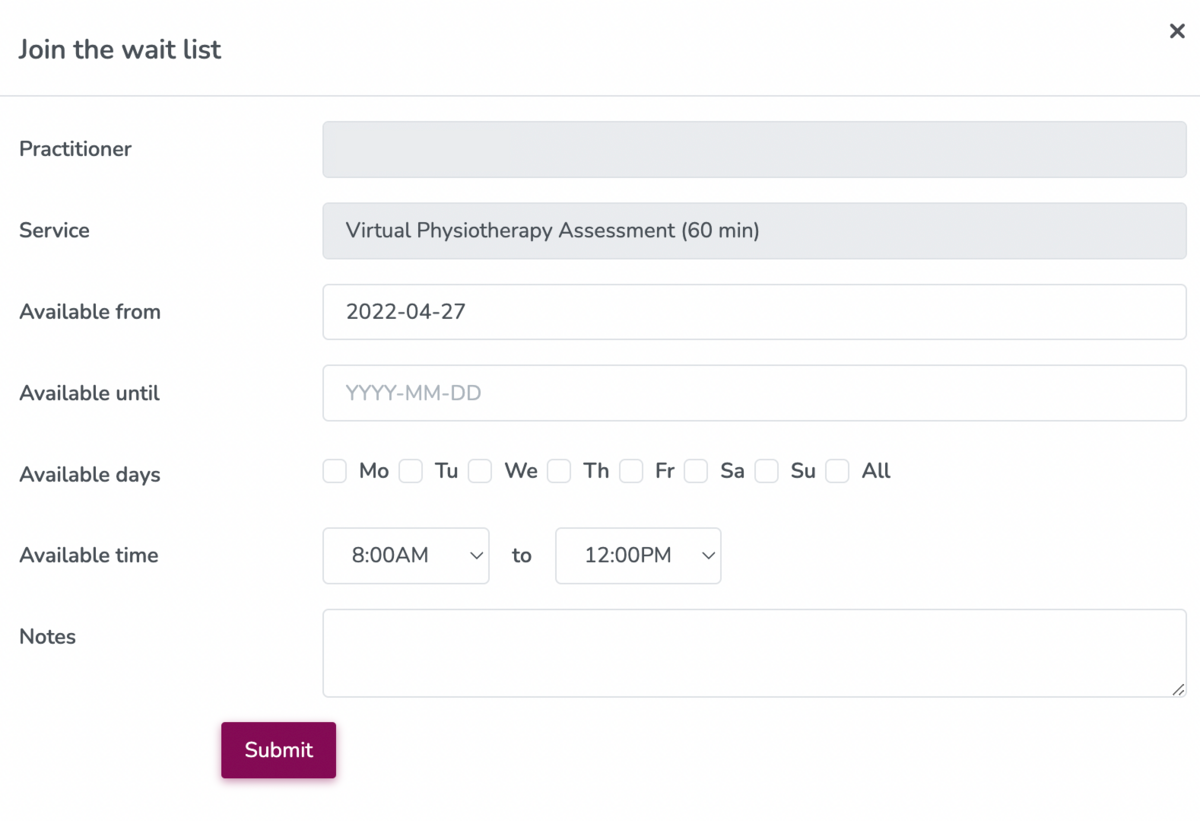
Enable the waitlist feature in online booking
Enabling your waitlist in online booking settings
You can enable the waitlist feature in online booking so patients can add themselves to your waitlist.
To do so, go to My clinic > Scheduling settings > Online booking.
Scroll down to the waitlist section and check the box next to Enable waitlist:
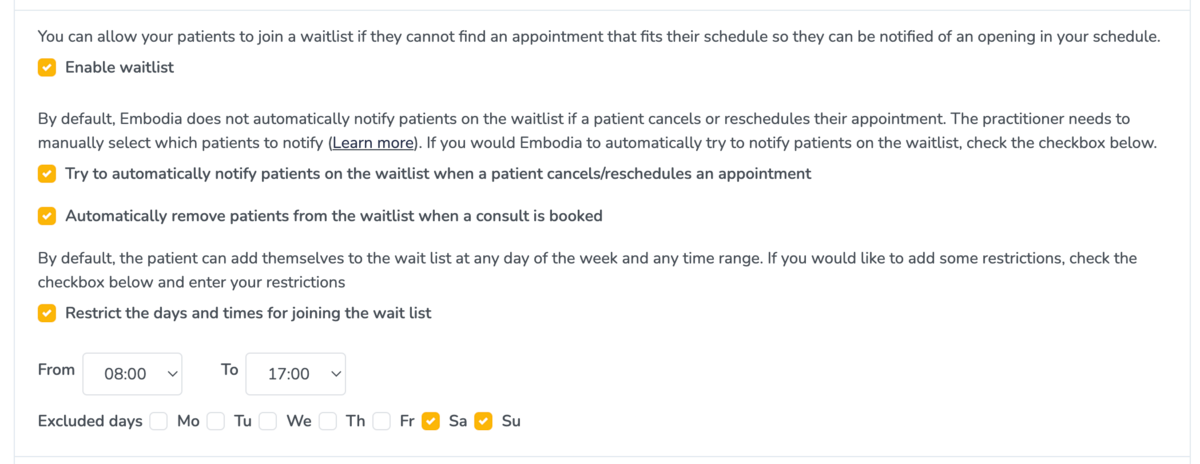
Additional waitlist options in online booking settings
By default, the practitioner needs to manually select which patients to notify on the waitlist. This provides practitioners with precise control over their waitlist. To learn more about the ways practitioners can notify patients on their waitlist, visit Using the waitlist on Embodia.
If you would like Embodia to try to automatically notify patients on the waitlist when another patient cancels/reschedules their appointment, check the Try to automatically notify patients on the waitlist when a patient cancels/reschedules an appointment checkbox.
If you also want to remove the patient from the waitlist when a consult has been booked, check the Automatically remove patients from the waitlist when a consult is booked checkbox.
You can also restrict the days and time range for joining the waitlist by checking the Restrict the days and times for joining the waitlist checkbox. Once checked, time and day fields will appear for you to set the desired time range and select which days you would like to exclude.
Note: The auto-notify option will only be triggered by another patient cancelling and freeing up that time slot via their patient portal if you have allowed them to cancel via the Consult settings for that service.
Once you've enabled your waitlist and selected your desired settings, scroll down further and click Update settings.
The patient waitlist experience
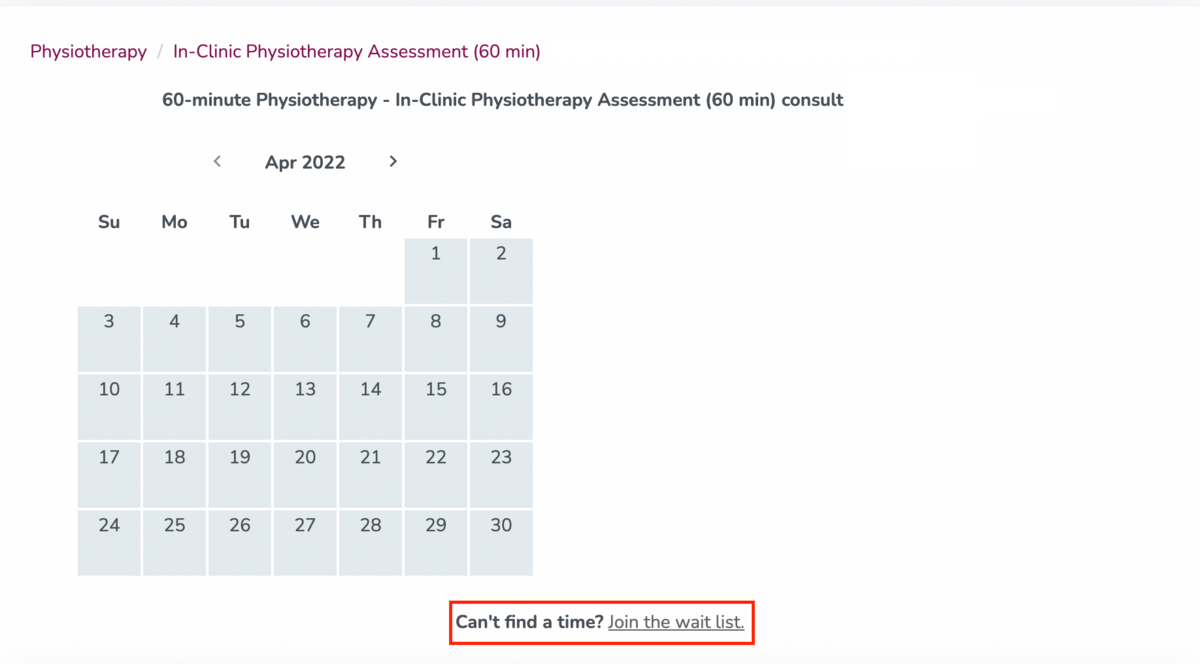
When you have enabled the waitlist for online booking, your patients will see the following at the bottom of your calendar on your online booking page 'Can't find a time? Join the waitlist.'
They will then be prompted to sign in or sign up, and then complete their availability criteria: